Switch 2 Pro Controller
The Switch 2 Pro pad works in Switch emulation (Astris) through The Vault — even though macOS can't see it at all. The Vault reads it over Bluetooth and forwards it as Player 1, with a one-combo quit.
Button map
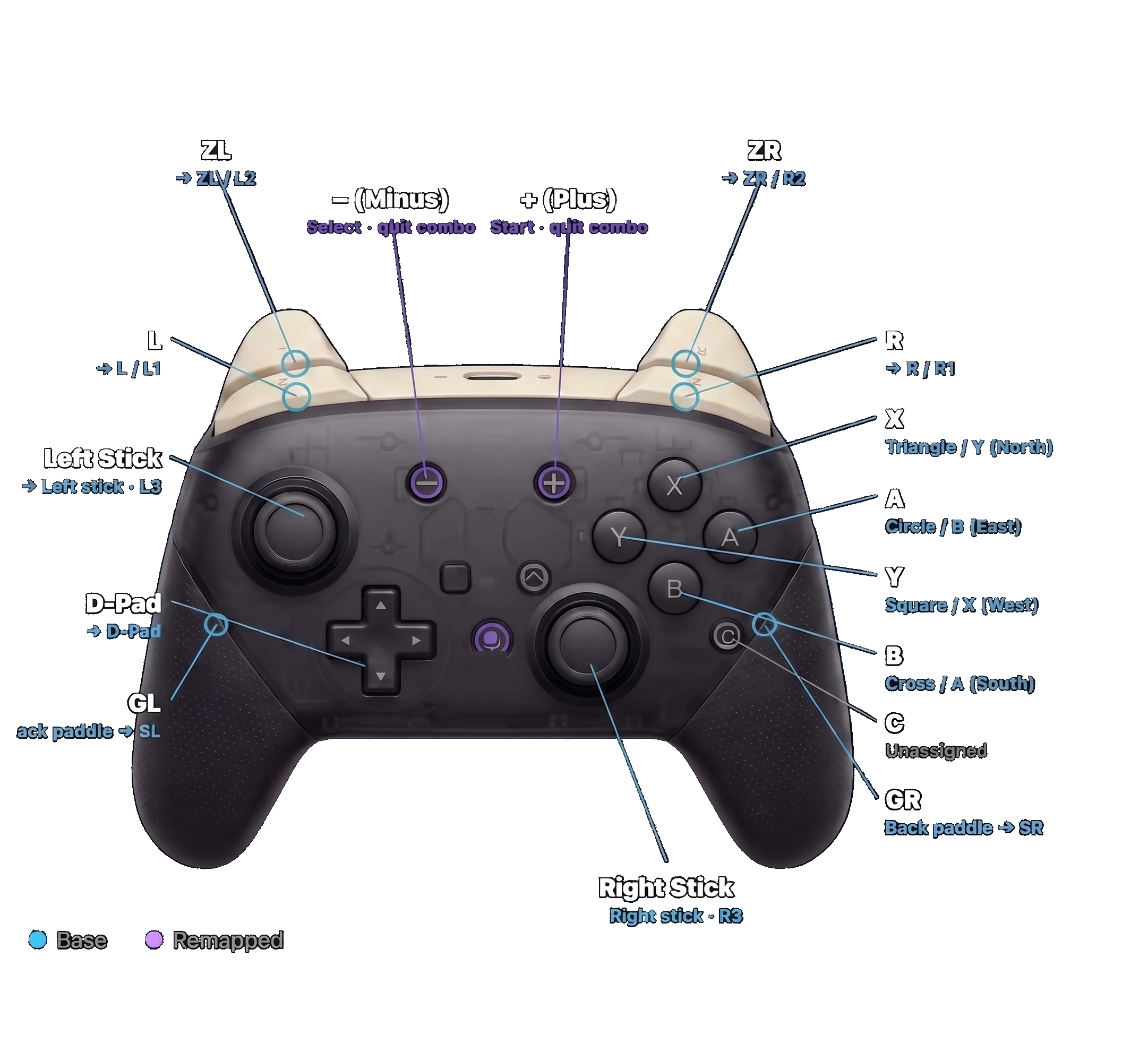
Quit the emulator — hold – (Minus) + + (Plus)
– (Minus) is the held modifier (the Select-role button); pressing + (Plus) with it is a dedicated two-button quit — Plus does nothing on its own here. A DualSense quits because macOS sees it natively and The Vault fires ⌘Q; the Switch 2 pad is invisible to macOS, so The Vault synthesizes the same ⌘Q itself when it sees the combo — and the two-button hold never fires mid-game:
| Combo | Action |
|---|---|
| – (Minus) + + (Plus) | ⌘Q — quit to the library |
Minus on its own is still Select in-game; Plus is only ever used as the second half of the quit combo.
How it connects
The Switch 2 controllers speak a proprietary Bluetooth LE protocol macOS ignores — there's no pairing entry for them in System Settings. The Vault runs its own BLE bridge that connects to the pad directly, then:
- forwards every button and stick to Astris as keyboard input (Player 1);
- watches for the Minus + Plus quit combo and issues ⌘Q.
In the Astris/Switch scope the bridge runs keyboard-forwarding only. Rumble inside emulators is still in progress — the bridge can drive the pad's motors directly (used by Test Rumble), but routing in-game force feedback back through keyboard forwarding isn't wired up yet.
🚧 Motion (gyro) — coming soon
The plan is to serve the pad's gyro/accel to Astris over DSU (cemuhook) so motion-aim games work — the DSU pipeline is already built and Astris is already configured to read it. The one remaining piece is the Switch 2 Pro's IMU-enable handshake, which needs to be nailed down on hardware; motion isn't delivered until then.
Turn on the bridge
- Turn the pad on so it's advertising over Bluetooth. (There's no macOS pairing step — you do not add it in System Settings.)
- Launch a Switch game, or open Settings → Controllers → Astris. The Vault starts the BLE bridge automatically whenever Switch emulation begins — the pad connects on its own.
- Prefer to start it by hand? Settings → Controllers has a Start bridge button, with a live discovery log at
/tmp/switch2listen.log.
Configure screen — remap, hotkeys & live glow
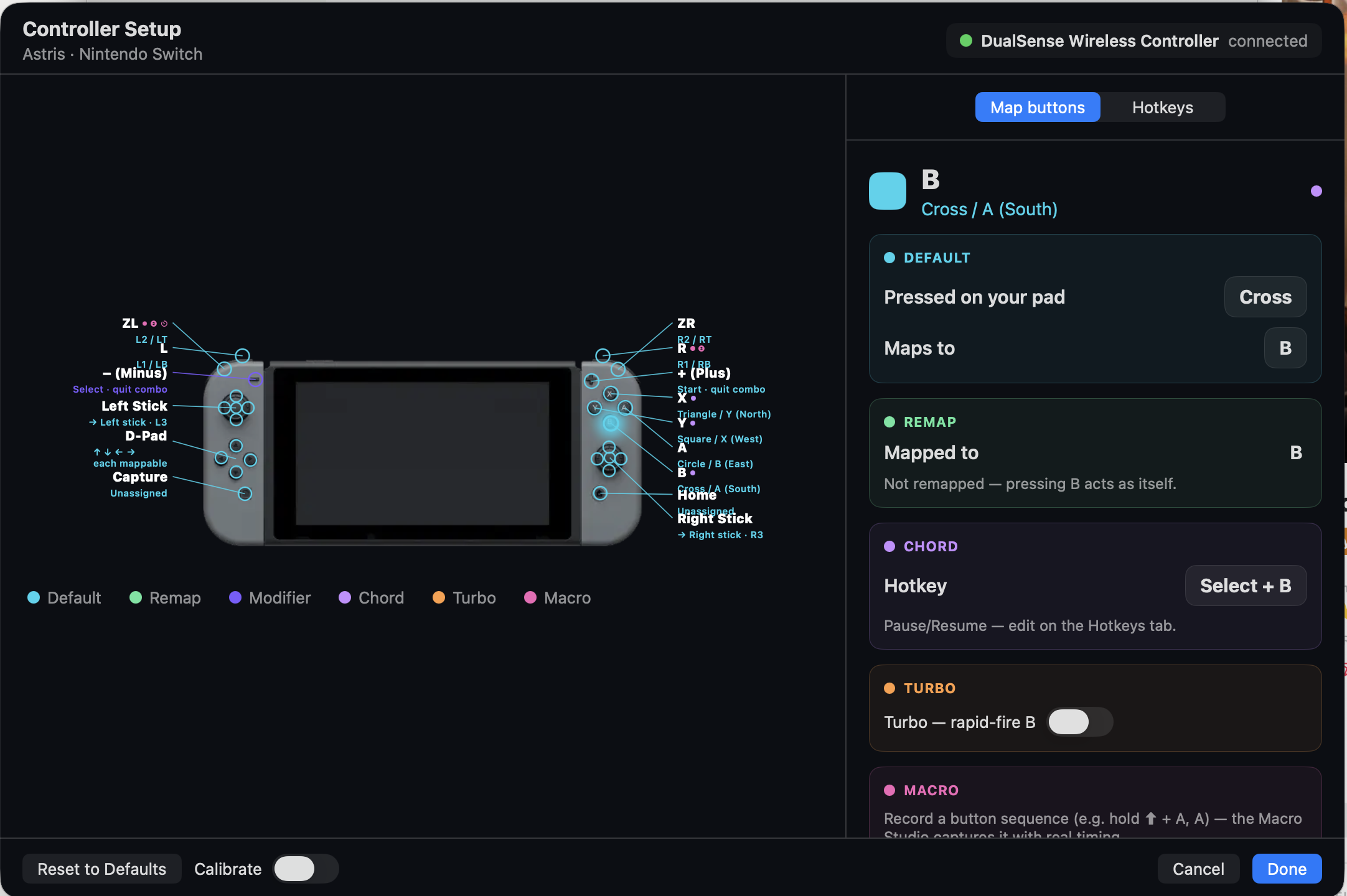
Open Settings → Controllers → Astris → Configure for the same visual editor the other pads use, built on the diagram above:
- Live glow — press any button and it lights up on the diagram, so you can confirm the pad is connected and every input is being read before you launch a game.
- Remap — reassign the face and shoulder buttons (A / B / X / Y, L / R / ZL / ZR).
- Hotkeys — review and adjust the quit combo, and bind the otherwise-unused Capture, Home and C buttons to your own actions.
Mapping
| Switch 2 | Maps to (PlayStation / Xbox) |
|---|---|
| A (East) | Circle / B |
| B (South) | Cross / A |
| X (North) | Triangle / Y |
| Y (West) | Square / X |
| Left / Right stick (click) | Left / Right stick (L3 / R3) |
| D-Pad | D-Pad |
| L / R | L1 / R1 |
| ZL / ZR | L2 / R2 |
| GL / GR (back paddles) | Joy-Con SL / SR |
| – (Minus) | Select |
| + (Plus) | Unbound — used only for the Minus + Plus quit combo |
| Capture / Home / C | Unassigned — free for hotkeys |
Two players
The Switch 2 pad is Player 1. Add a DualSense as Player 2 and The Vault forwards it to a second, non-overlapping key block — so two pads drive one Astris session at once.